

Start here
Link your child's device
Seven short steps, once for each device. You'll go back and forth between your child's device and your phone.
Open the game and tap the cloud
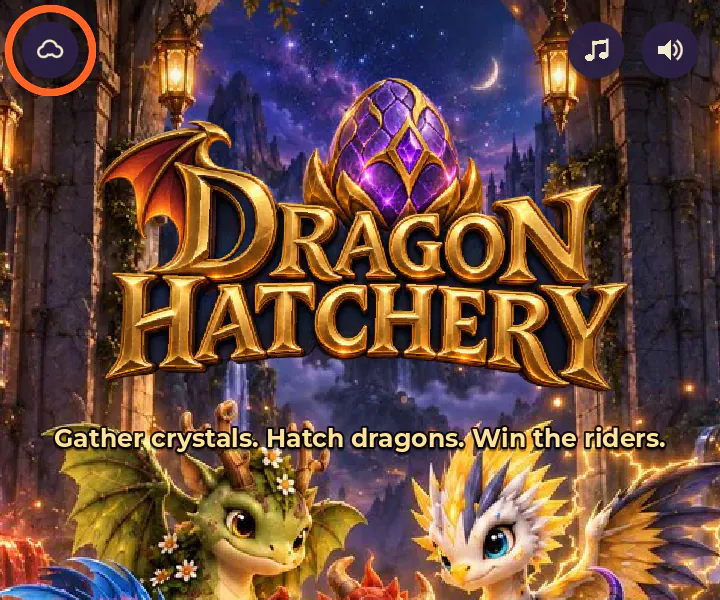
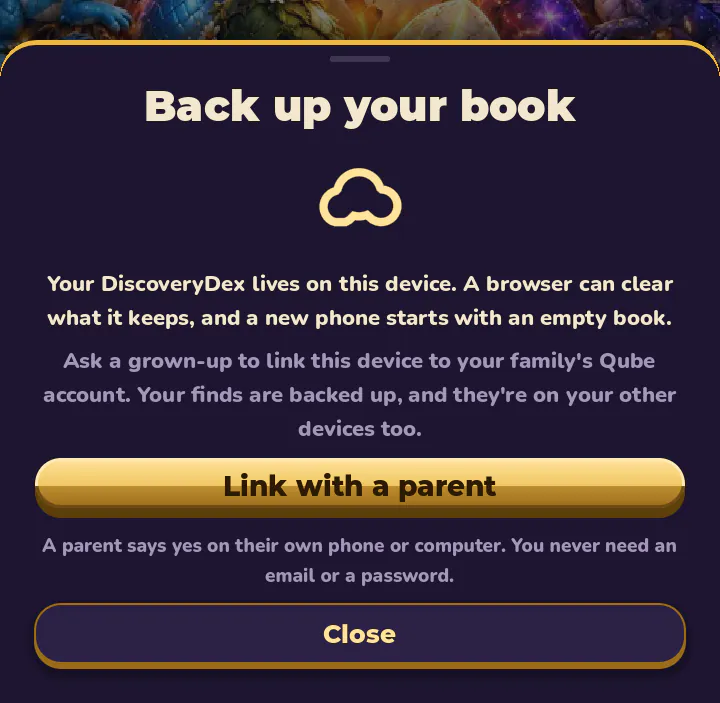
On your child's device, open Dragon Hatchery from the link in your invitation. Tap the cloud at the top left of the title screen, then tap Link with a parent.
Scan the code with your phone
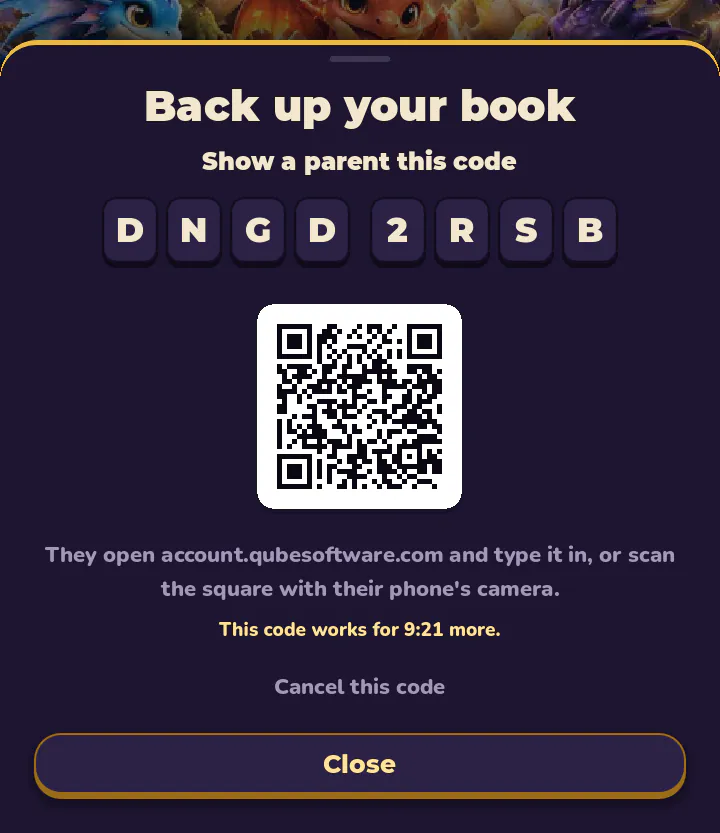
The game shows a code of 8 letters and numbers, and a square QR code. Point your phone's camera at the square and open the link it shows. No camera handy? Go to account.qubesoftware.com on any phone or computer and type the code instead.
A code works for 10 minutes. If it runs out, tap Get a new code on the device.
Sign in with your email
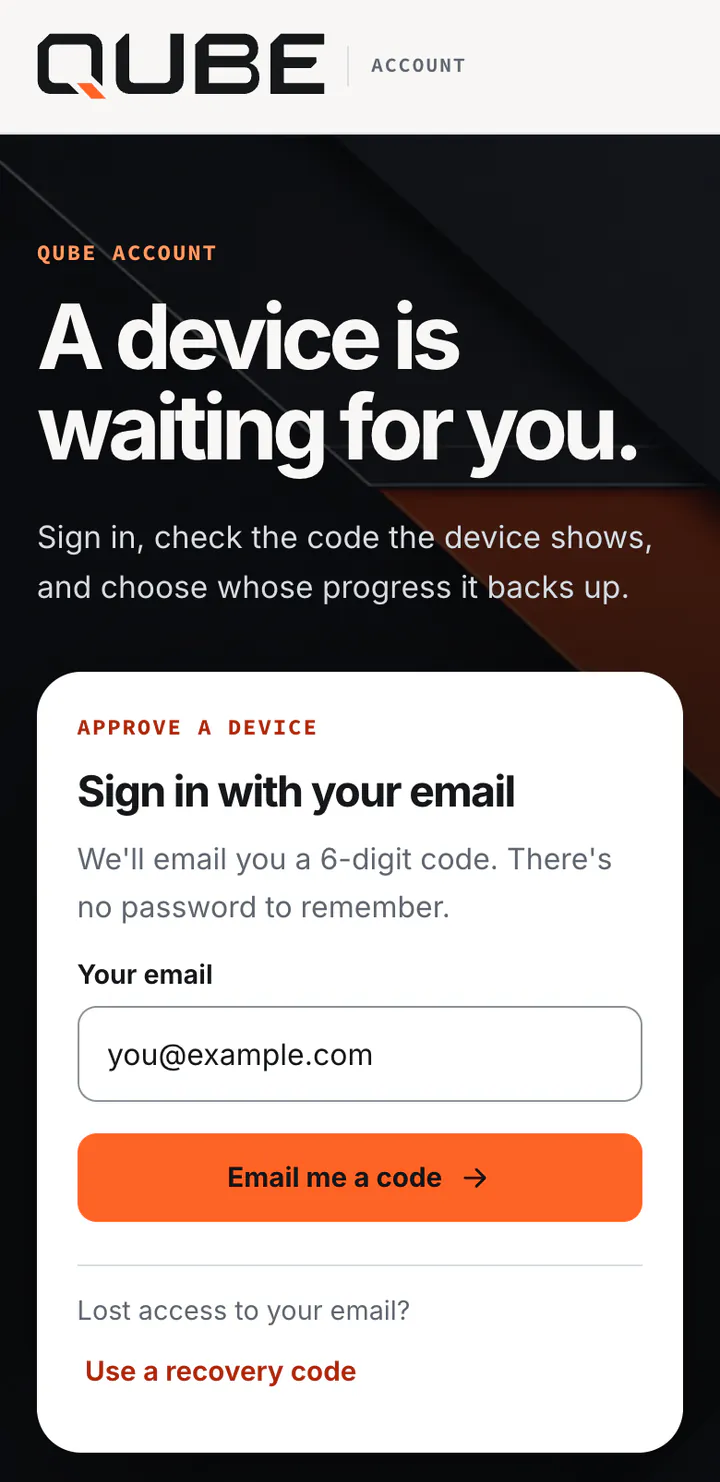
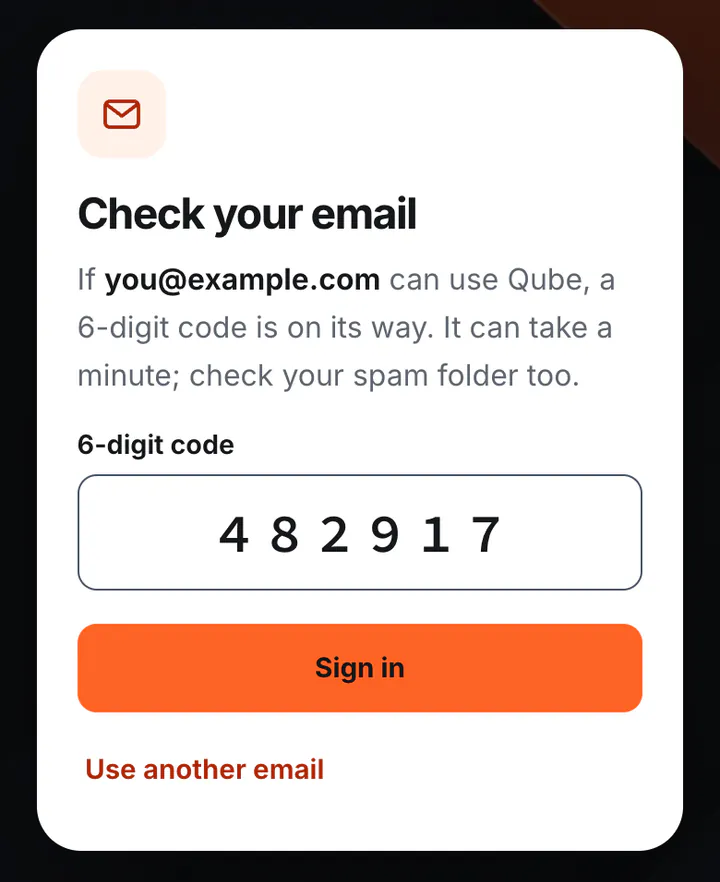
Type your email address and tap Email me a code. We email you a 6-digit code: type it in and tap Sign in. There's no password to remember.
No email after a minute? Check your spam or junk folder.
Save your recovery codes
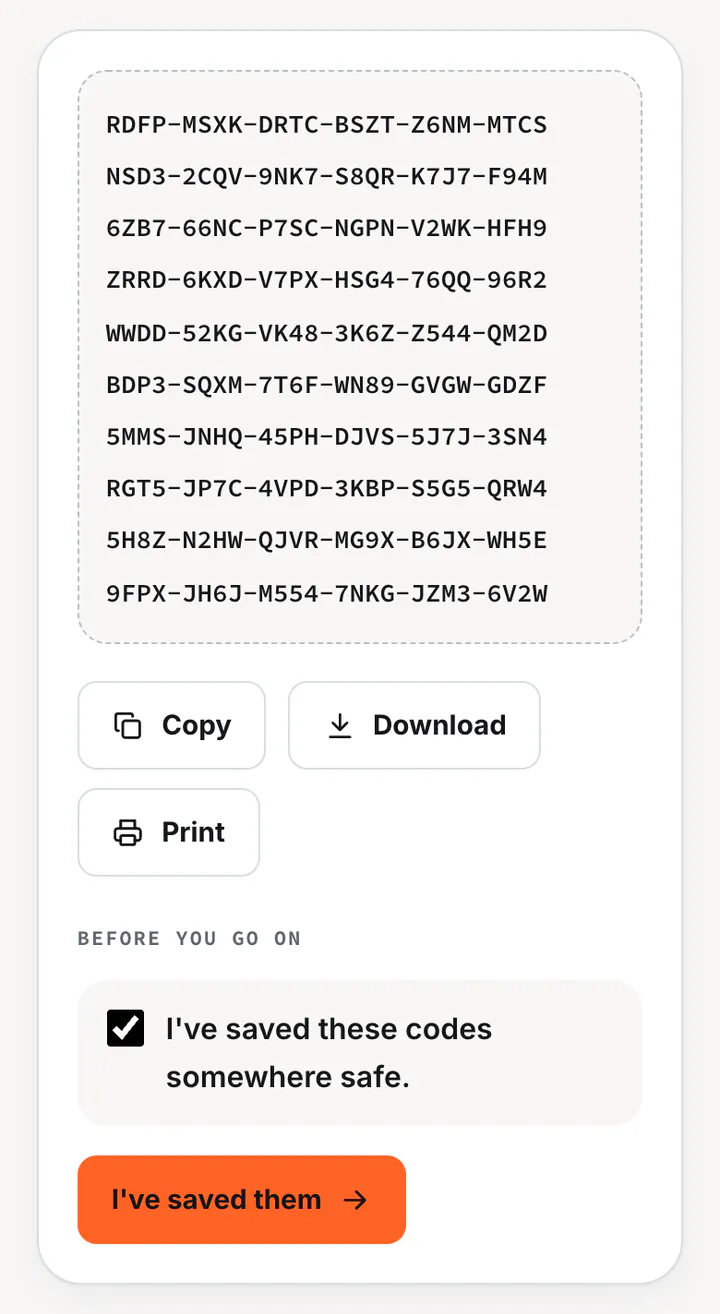
The first time you sign in, you get 10 recovery codes. Print them, download them, or keep them in a password manager, then tick the box and tap I've saved them. If you ever lose access to your email, one of these codes gets your account back.
You only do this once.
Add your child's profile
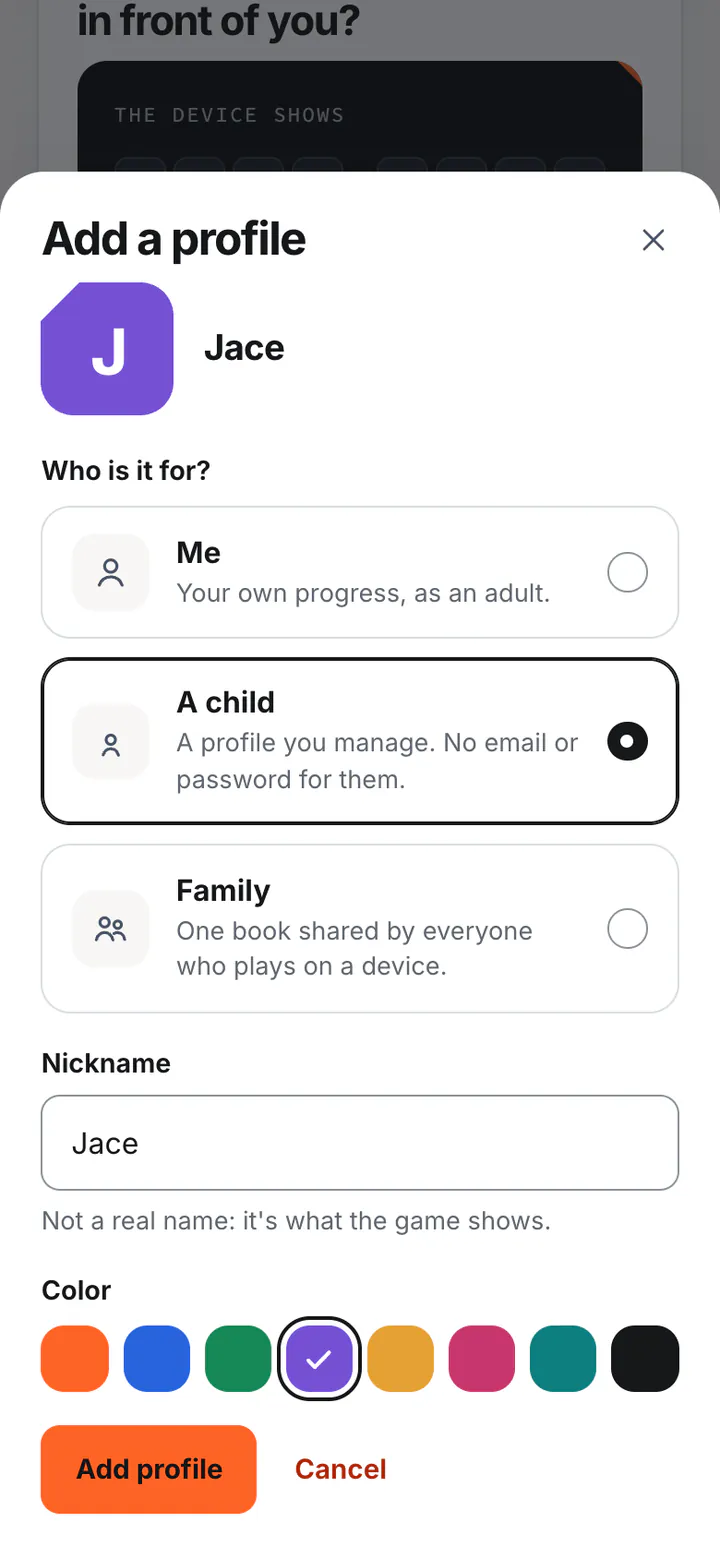
Tap Add a profile and choose A child. Type a nickname (not their real name) and pick a color, then tap Add profile. The device's code stays ready while you do.
Child profiles open once our parental consent process has been reviewed. Until then, choose Family: one book that everyone in your home shares.
Check the code and approve
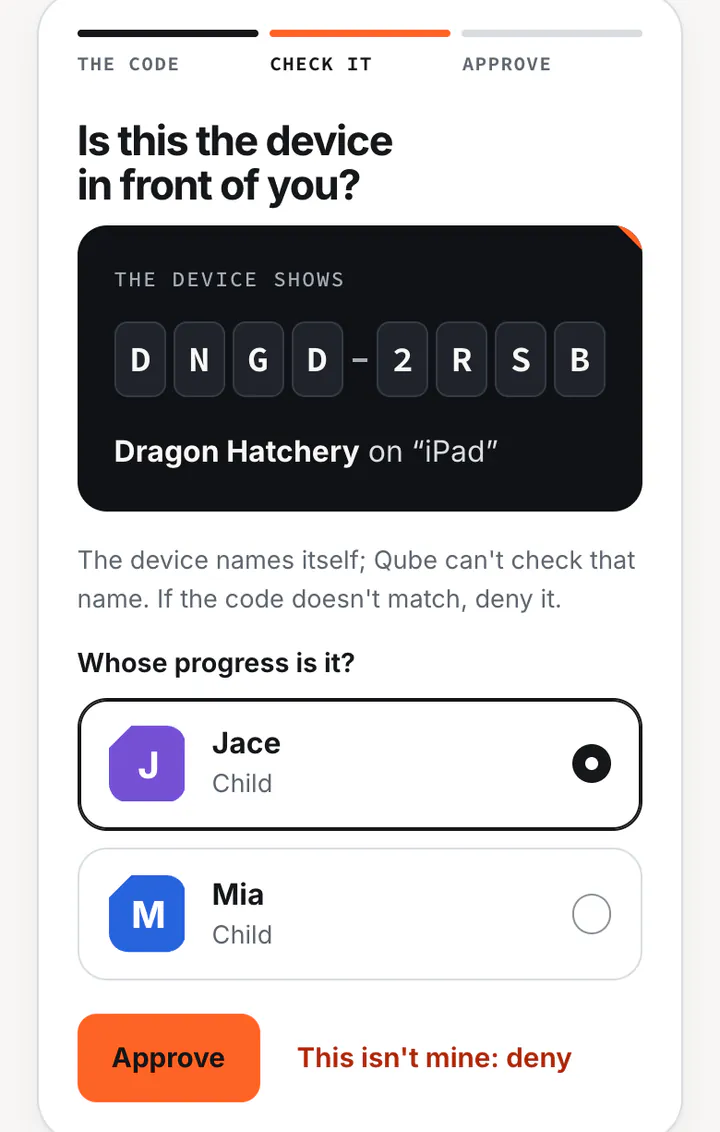
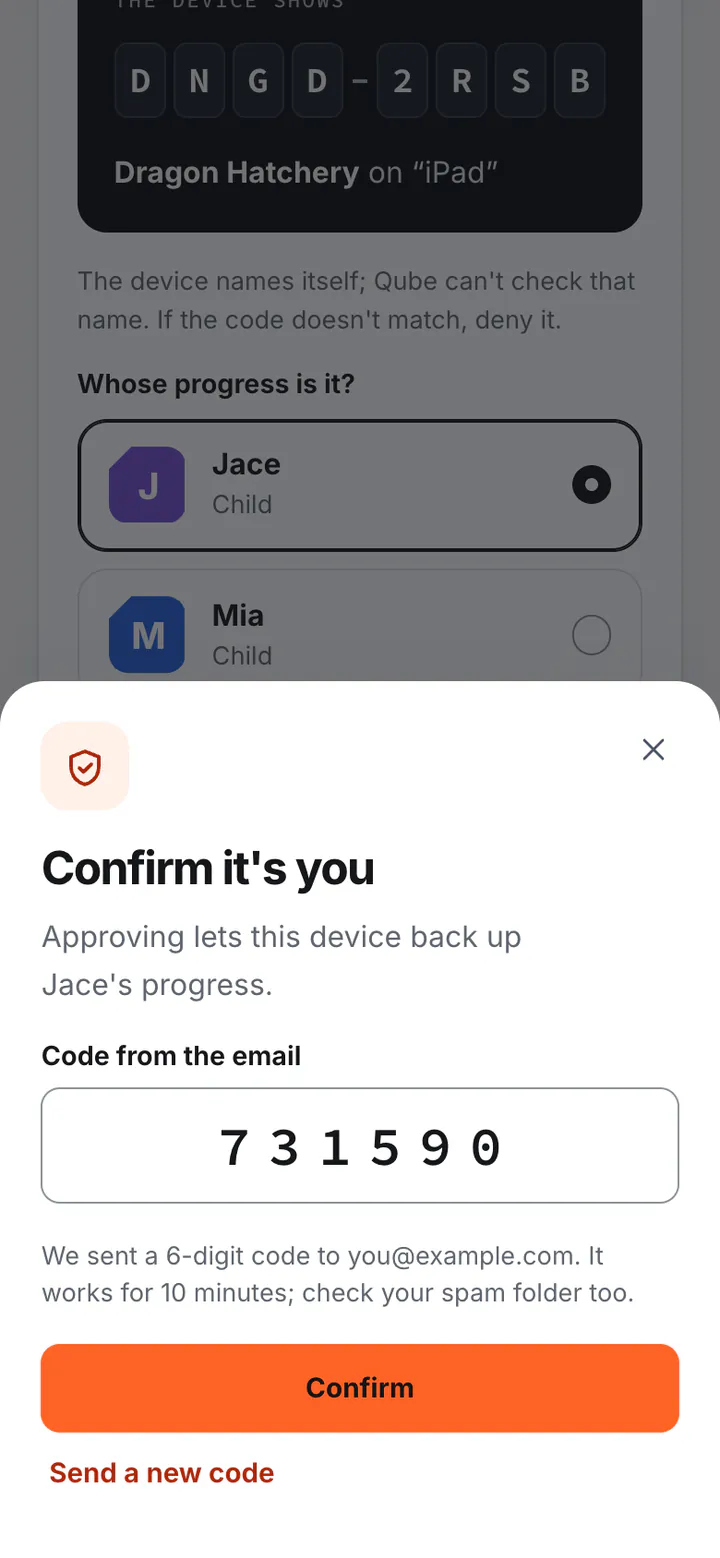
Make sure the code on your screen matches the one on the device. Choose whose progress it is, then tap Approve. To be sure it's you, we email one more code: type it in and tap Confirm.
Finish on the device
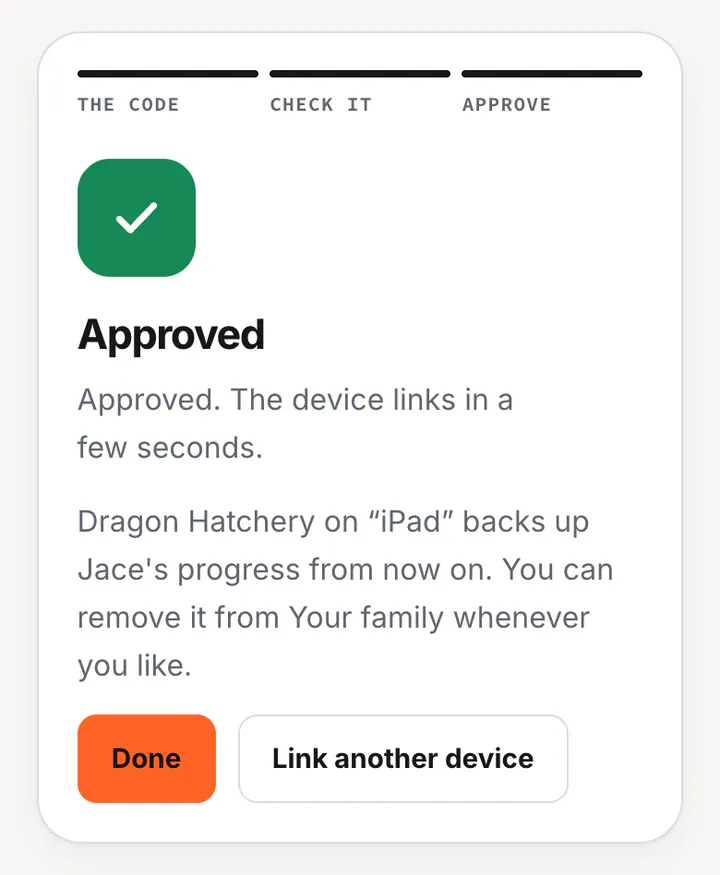
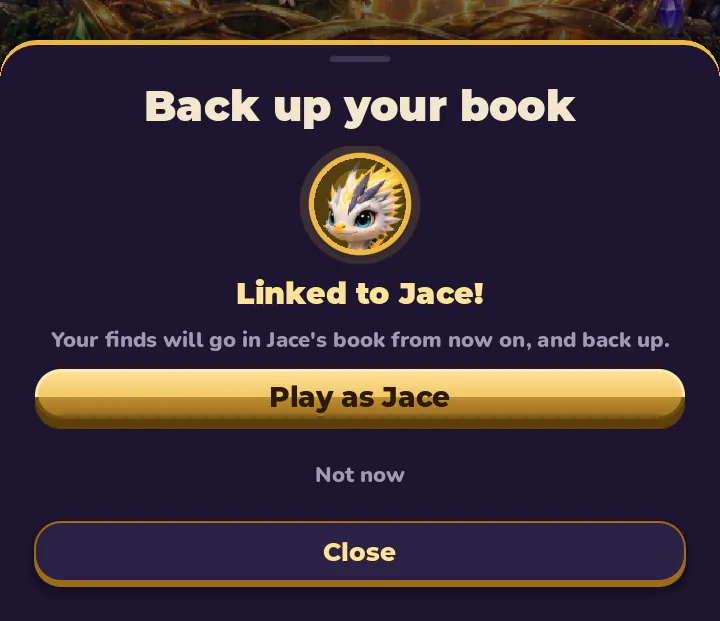
The account site says Approved, and a few seconds later the device says Linked to Jace! Tap Play as Jace. That's it: from now on, Jace's finds back up by themselves.


Every day
Check it's backed up
The cloud at the top left of the title screen, and at the top of the DiscoveryDex, shows how the backup stands. There's nothing to do: it backs up by itself.
A tick: backed up
Everything is safe in your Qube account.
Dots: waiting
Saved on the device. It backs up by itself once it's online.
Crossed out: needs a grown-up
The device can't back up, for example because its link was removed. Tap the cloud to see why.
Tap the cloud to see when it last backed up, or tap Back up now to do it straight away.


As your family grows
More devices and children
Another device for the same child
Follow the same steps on the other device, and choose the same profile. The devices share one book: a dragon found on the tablet shows on the phone too.
Two children on one tablet
Link the tablet once for each child, choosing their own profile each time. Before a game, tap the cloud and choose who's playing.

Playing together on one device
When several people play one game on the same device, the game asks which seat is your child, so only their hatches go in their book.

On the account site
Manage your family
Sign in at account.qubesoftware.com whenever you like. Your family page shows each profile, its devices, and when each one last backed up.

- Rename a device, so you can tell your family's devices apart.
- Remove a device: it stops backing up at once.
- Edit profile to change a nickname or color. Devices show it after their next backup.
- Manage Jace's data to download a copy, put back an earlier copy of the book, remove a game's progress, or delete the profile.

Lost, sold or handed down
Remove a device
On the account site
Tap Remove next to the device, then Remove device. It stops backing up straight away.
On the device
Tap the cloud, then Unlink this device.
Either way, the device plays on as a guest. Anything it hadn't backed up yet stays on it, and goes up if you link it again. Removing a device can't erase what's already on it.


Just for you
Your account
Tap Account at the top of the account site. On a phone, it's in the menu at the top right.
- Change email: we check your old address and your new one.
- Recovery codes: see how many are left, and make new ones.
- Where you're signed in: sign out of other browsers.
- Delete your account: deletes your account, every profile and all their progress.

If it happens
Lost access to your email?
- On the sign-in page, tap Use a recovery code.
- Type one of your saved recovery codes, and a new email address you can open.
- Type the code we send to your new address, and tap Move my account.
Your profiles and progress stay as they are. Every device is signed out, so link them again, and you get a fresh set of recovery codes.
Without your email or a recovery code, nobody can get your account back, not even Qube. Keep your codes somewhere safe.

Questions
Does my child need an email address or a password?
No. Only you sign in. Each device needs your OK once, and that's all.
Do we need an account to play?
No. Every Qube game plays without one. An account backs up progress and shares it between your devices.
What does Qube keep about my child?
A nickname, a color, the names of the devices you linked, and their game's book: the dragons and riders they've found. We never ask for their real name, birthday, photo or where they live. The Privacy policy has the details.
Can other players see my child's book?
No. A child's book, or a Family book, is never shown to other players at online tables.
The code didn't work, or it ran out.
Each code works once, for 10 minutes. On the device, tap Get a new code and try again.
I didn't get the email.
Give it a minute, and check your spam or junk folder. You can ask for a new code after a minute.
We got a new phone, or cleared the browser.
Link it again and choose the same profile. Everything that was backed up comes back.
A device was lost or stolen.
Sign in and tap Remove next to it. It stops backing up straight away.
Can two parents look after one family?
Not yet: for now, each family has one parent account. If you both want to look after it, sign in with an email address you can both open.
Which games work with Qube accounts?
Dragon Hatchery, for now. More Qube games will join.
How do I delete everything?
Sign in, tap Account, then Delete my account. Your account, every profile and all their progress are deleted for good. Your rights as a parent lists everything you can do.